


Browse and preview Spine skeleton animations directly inside VS Code.
Every skeleton in the workspace shows up in a sidebar tree, grouped by folder. Click one to play its animations.
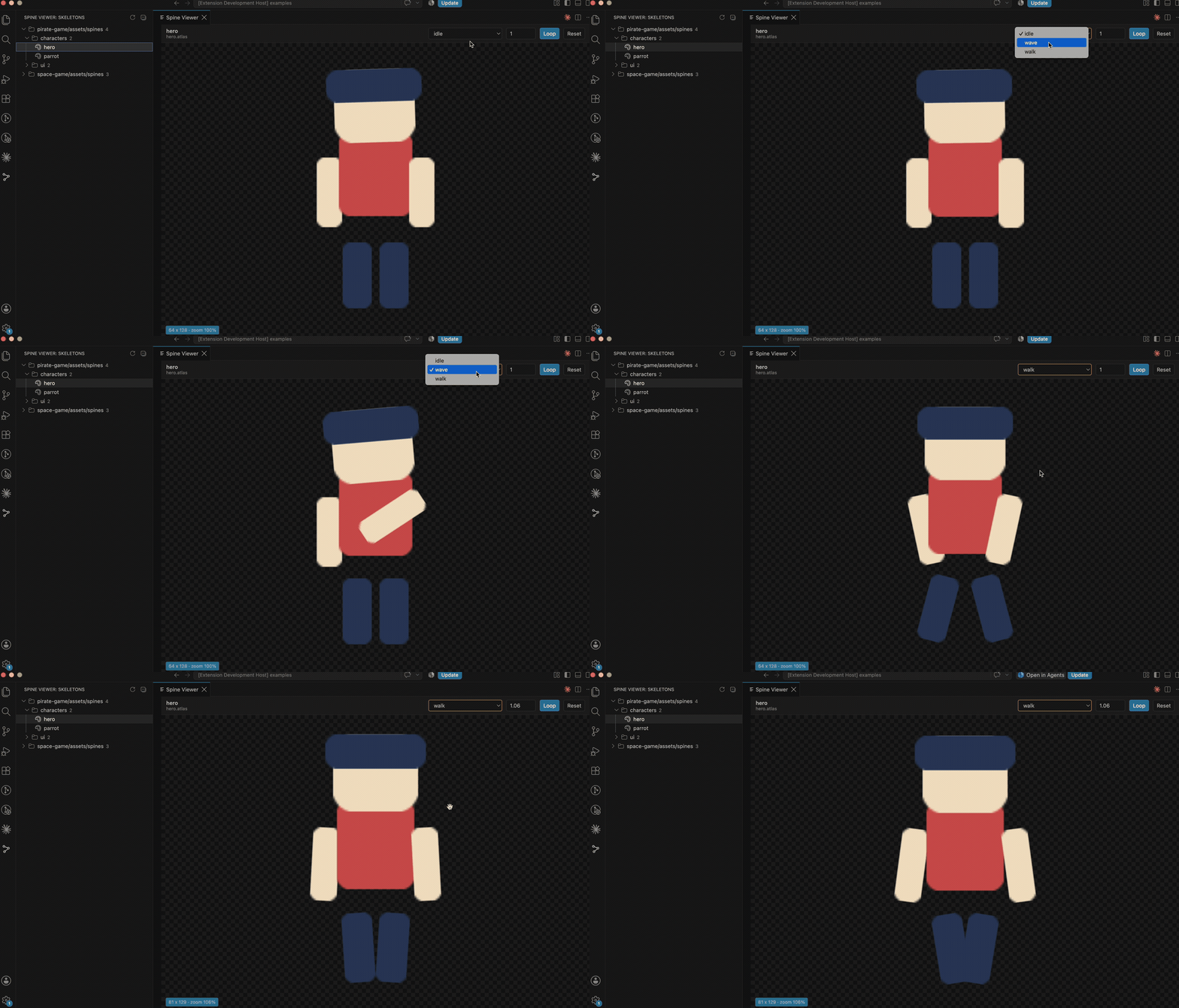
- Open a project that contains Spine assets.
- Click the Spine Viewer icon in the Activity Bar.
- Expand a folder and click a skeleton.
- Choose an animation from the toolbar.
Use the refresh button in the view title after adding or re-exporting assets.
| Animation | Pick what plays on the selected track |
| Tracks | Choose a track to load into; Clear empties it |
| Skin | Shown when the skeleton has more than one |
| Zoom | Manual scale, or scroll to zoom |
| Speed | 0.1x to 3x, for reading timing frame by frame |
| Loop | Toggle looping |
| Reset | Restore zoom and pan (or double-click the canvas) |
Drag to pan, scroll to zoom, double-click to recentre.
Finds your skeletons wherever they live. Discovery keys off .atlas files rather than a fixed
assets path, so static/assets/spines, Assets/Spine, and art/animations all work without
configuration. The tree hides the path segments every skeleton shares and folds away folders that
hold a single skeleton, so it starts where your assets actually differ.
Fast on large repositories. Only paths are collected up front; a skeleton is read the moment you click it. A monorepo with a thousand skeletons opens as quickly as one with ten.
Event timeline. Animations with event keys get a timeline under the preview: a marker per event, a playhead that follows playback, and a flash with the values as each one fires. This is the view you need to line a sound or an effect up with an animation.
Animation tracks. Spine layers animations — a walk on track 0, a wave on track 1. Four tracks let you reproduce the combination your game code actually plays, instead of checking one animation at a time.
Skins. Skeletons that ship more than one skin get a selector, so alternate looks are one click away rather than invisible.
Nothing to install. The Pixi and Spine runtimes are bundled into the extension. No project setup, no dev server, no dependency on what your workspace happens to have installed.
The repository ships seven small demo skeletons under examples/. Clone it, open the folder in
VS Code, and they appear in the sidebar — no Spine editor or project setup needed.
pirate-game/assets/spines
  characters
    hero          idle, wave, walk
    parrot        idle, fly
  ui
    chest         idle, open
    coin          idle, spin
space-game/assets/spines
  effects
    explosion     burst, idle
    thruster      idle, boost
  ui / coin       idle, spin
A track is a slot for one playing animation, and a skeleton file does not record them — your game code decides what goes where. The viewer gives you the same four slots to work with.
Click a track number, then pick an animation: it loads into that track. Track 0 starts with the skeleton's default animation and the rest start empty. Clear empties the selected track, and the event timeline follows whichever track is selected.
Layering only shows when the two animations drive different bones. If both animate the same bone, the higher track wins and the lower one is hidden — which is exactly how it behaves in game.
Click any marker to print its name, time, and int/float/string values. Animations without events do not show the timeline. Slow the playback speed down to read events that fire close together.
The extension looks for .atlas files anywhere in the workspace and treats the .json files
beside them as skeletons. Nothing is assumed about your folder names, so static/assets/spines,
Assets/Spine, and art/animations all work the same way.
Build output and dependency folders are skipped: node_modules, .git, dist, build, out,
coverage, storybook-static, .svelte-kit, .next, .nuxt, .cache.
The tree hides path segments that every skeleton shares and folds away folders that hold a single skeleton, so it starts where your assets actually differ.
Atlas page images are loaded by name straight from the atlas, so any format VS Code can decode
works — .png, .webp, .jpg, .jpeg, and .avif among them. Page names that point into a
subfolder resolve too.
Each skeleton is paired with an atlas in its own folder: one matching the skeleton's name if there is one, otherwise one named after the folder, otherwise the first atlas found. Skeleton files are only read when you select them, so opening a large monorepo stays fast.
The renderer ships with the Spine Runtimes (@esotericsoftware/spine-pixi-v8) bundled into the
extension, so it works in any workspace with no project setup.
The Spine Runtimes are not MIT licensed. Under the Spine Runtimes License Agreement, each user
of this extension must hold their own Spine Editor license. The full agreement is included as
LICENSE-spine-runtimes.txt and is preserved in the bundled runtime.
If the preview panel opens but the canvas does not render, check:
View > Output > Spine Viewer- Whether the skeleton JSON, atlas file, and atlas page images are in the same folder
- Whether the atlas page names exactly match the image filenames
- Binary
.skelfiles are not supported yet. - A non-skeleton
.jsonsitting beside an atlas appears in the tree and reports an error when opened. - Rendering targets assets compatible with
@esotericsoftware/spine-pixi-v84.2. Skeletons exported from a much newer or older Spine version may not load. - Compressed atlas pages (
.ktx,.basis) cannot be decoded. - Atlas images must be local workspace files.
- The skeleton and its atlas must sit in the same folder.
This extension is MIT licensed. See LICENSE.
The bundled Spine Runtimes are licensed separately under the
Spine Runtimes License Agreement
and require each user to hold a Spine Editor license. See LICENSE-spine-runtimes.txt.
Pixi.js is MIT licensed.