Loop engineering for your terminal. Run any command on a cadence.
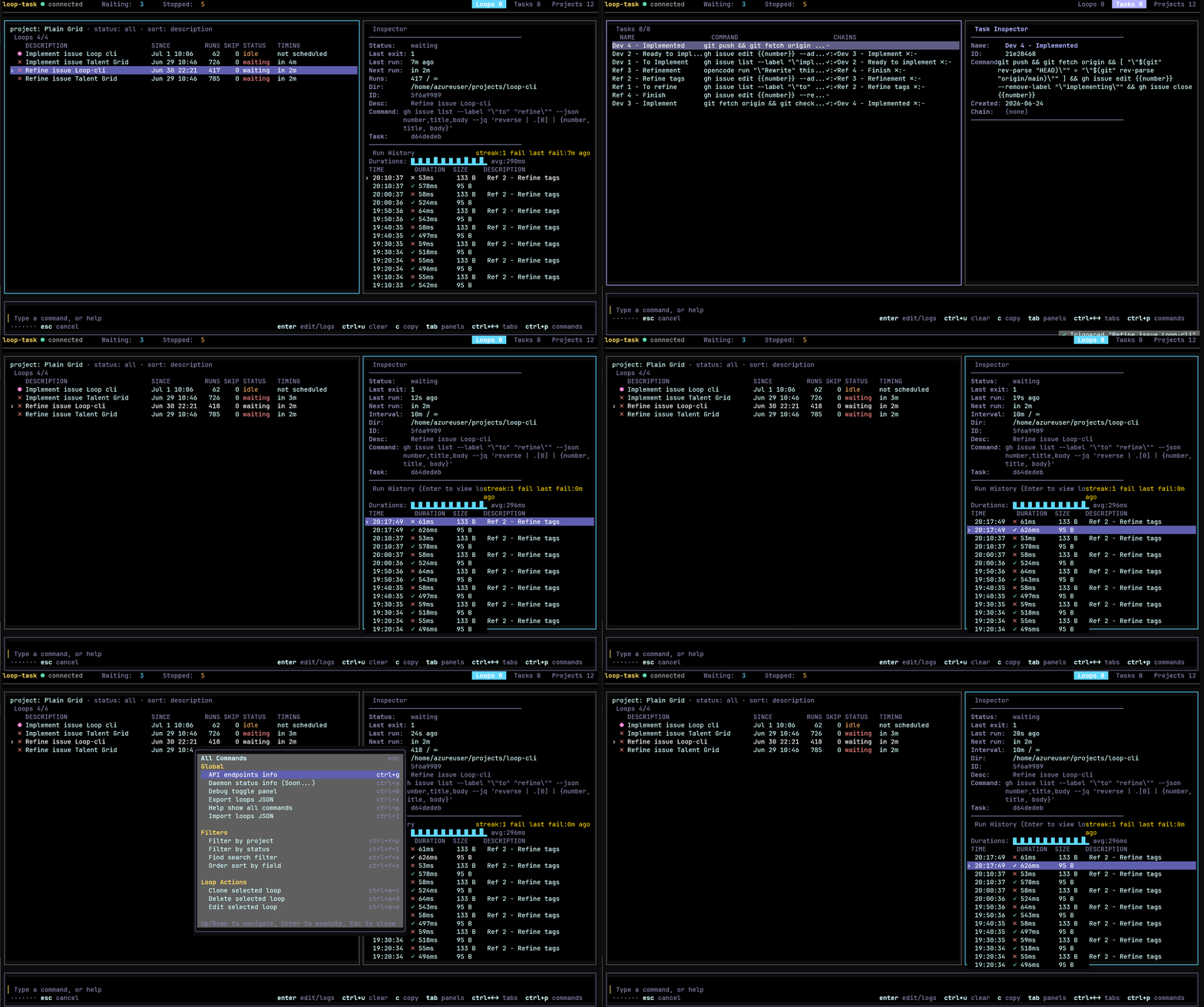
loop-task is a cross-platform CLI that runs shell commands at human-readable intervals. Create loops in the background, manage them from an interactive TUI board, or run them in the foreground. It is the heartbeat primitive for loop engineering: instead of running a task by hand every time, you schedule it once and let it run.




Loop engineering is designing systems that run work on a cadence instead of triggering each run yourself. A loop is a recurring goal: you define a purpose, give it an interval, and let it iterate. It applies to ordinary engineering work just as much as to AI agents: health checks, sync jobs, test watches, data pulls, deploy polls, and report generation are all loops.
loop-task is that heartbeat as a tiny local primitive. Some examples:
# Run the test suite every 30 minutes
loop-task new 30m -- npm test

# Poll a deploy every 10 seconds until you stop it
loop-task new 10s -- curl -sf https://example.com/health

# Re-sync a data export once an hour, scoped to a project
loop-task new 1h --project etl -- ./scripts/sync.sh

# Have a coding agent chip away at a backlog every 30 minutes
loop-task new 30m -- opencode run "find missing translations and translate them, 3 max"
No cron files to maintain and no daemon to babysit: loops persist across reboots, run in the background, and you watch them from a terminal board. The idea is described well in Addy Osmani's Loop Engineering, where scheduled automations are the first of the five pieces of a working loop.
Stay in control. A loop running unattended is also a loop failing unattended. Use
--max-runs, watch the run history on the board, and review what each loop produces. The leverage moves to the loop; the responsibility stays with you.
npm install -g loop-task
loop-task                          # open the board
loop-task start                    # start the daemon, restore persisted loops
loop-task new 30m -- npm test      # create a background loop
loop-task run --now 10s -- echo hi # run a loop in the foreground
loop-task stop <id>                # stop a frozen loop and kill its child process
loop-task restart                  # kill daemon + all loops, restart fresh
loop-task api                      # show HTTP API endpoints (Swagger, OpenAPI)
Or run it directly:
npx loop-task
npx loop-task new 30m -- npm test- Node.js >= 20 - required for all commands including the board
npm install -g loop-taskAll commands (start, new, run, board) work with Node alone.
A loop is a schedule - it defines when something runs. Loops trigger tasks.
| Field | Description |
|---|---|
| Interval | How often to run (30s, 5m, 1h, 1d, 1w) |
| Task | Inline command or a reference to a previously defined task |
| Description | Optional label shown in the list; defaults to the task name |
| Run immediately? | Run once now, then every interval, or wait the first interval |
| Max runs | Stop after N runs, or leave blank to run forever |
A task is an executable unit - it defines what runs. Tasks can chain to other tasks on success or failure.
| Field | Description |
|---|---|
| Name | A short label for the task |
| Command | The full command line |
| On success | Optional task to run when this one exits with code 0 |
| On failure | Optional task to run when this one exits with a non-zero code |
Tasks are reusable - the same task can be referenced by multiple loops or by other tasks' success/failure chains.
A project is an organizational scope for loops. Every loop belongs to exactly one project. The board shows only loops in the currently selected project.
| Field | Description |
|---|---|
| Name | A short label for the project |
| Color | One of six colors: white, cyan, orange, green, red, yellow |
Key behaviors:
- Default project - always present, cannot be renamed or deleted. New loops are assigned here when no other project is selected.
- Color bullets - each loop in the navigator displays a colored bullet (●) matching its project color.
- Project filter - the board shows only loops belonging to the currently active project. The selection persists across sessions via
localStorage.
To use projects from the board:
- Press
cto open the Project selector (switch between projects) - Click Manage Projects in the filter bar (or use the keyboard shortcut) to open the Manage Projects page
- From the Manage Projects page:
ncreates a new project,erenames the selected project,ddeletes it,Escreturns to the board
From the CLI:
loop-task project list- list all projectsloop-task project new <name> [--color <color>]- create a projectloop-task project rename <id|name> <new-name>- rename a projectloop-task project color <id|name> <color>- change a project's colorloop-task project delete <id|name>- delete a project (loops move to Default)loop-task new <interval> --project <name> -- <command>- create a loop assigned to a project
Colors can be a name (white, cyan, green, yellow, orange, pink) or a #rrggbb hex value.
| Command | Description |
|---|---|
loop-task |
Open the interactive board |
loop-task start |
Start the background daemon, restore persisted loops |
loop-task new <interval> -- <command> |
Create a background loop (creates an inline task) |
loop-task new <interval> --project <name> -- <command> |
Create a loop assigned to a project |
loop-task run <interval> -- <command> |
Run a loop in the foreground |
loop-task stop <id> |
Stop a loop and interrupt its running child process |
loop-task restart |
Kill the daemon and all running loops, then restart fresh |
loop-task status [--json] |
Show status of all loops (JSON optional for scripting) |
loop-task export [file] |
Export all configs to JSON file (or stdout) |
loop-task import <file> |
Import configs from file (triggers hot-reload) |
loop-task api |
Show HTTP API endpoints (base URL, Swagger UI, OpenAPI spec) |
loop-task project list |
List all projects |
loop-task project new <name> [--color <color>] |
Create a project |
loop-task project rename <id|name> <new-name> |
Rename a project |
loop-task project color <id|name> <color> |
Change project color |
loop-task project delete <id|name> |
Delete a project (loops move to Default) |
| Option | Description |
|---|---|
--now |
Run immediately before waiting |
--max-runs <n> |
Stop after N executions |
--cwd <dir> |
Working directory for the command |
--verbose |
Show execution details |
-h, --help |
Display help |
-V, --version |
Display version |
# Run tests every 30 minutes
loop-task new 30m -- npm test

# Run immediately, then every hour
loop-task new --now 1h -- npm test

# Run up to 5 times, then stop
loop-task run --max-runs 5 5m -- npm test

# Agent workflow - schedule an AI task every 30 minutes
loop-task new 30m --now -- opencode run "search missing translations and translate them, 3 maximum" --model "opencode/big-pickle"
# Run in a specific directory
loop-task new 30m --cwd ./packages/api -- npm test

# Verbose mode
loop-task run --verbose 30m -- npm test
When the command has its own flags, use -- to stop argument parsing:
loop-task new 30m -- node -e "console.log('hello')"The board is the primary way to manage loops and tasks. It shows all loops, their status, run history, and logs in a single terminal interface.
↑/↓, j/k    move selection
Enter       edit selected loop
e           edit loop
d/del       delete loop
p           pause (when waiting) / play (when idle/paused)
s           stop loop (resets schedule)
n           create a new loop
t           create a new task
o           cycle sort mode (order by)
←/→         switch between panels
/           search loops
h           toggle help
esc         quit
Destructive actions (pause, force run, delete) prompt a confirmation before executing.
The bottom command bar is a normal terminal input, so use your terminal's own clipboard gestures — they work in every terminal (including the VS Code integrated terminal, where Ctrl+C/V are captured by the editor):
- Paste with Ctrl+Shift+V (Windows/Linux), Cmd+V (macOS), or right-click. Multi-line pastes collapse to a single line.
- Ctrl+U clears the command bar (select-all + delete).
ccopies the selected loop/task's command to the clipboard.- To copy arbitrary text, drag-select in the terminal and use its native copy (Ctrl+Shift+C / right-click).
- Pause (
p) - temporarily halts the loop. Resuming continues the original schedule (e.g., a loop that runs every 6h at :00 paused at 12:00 and resumed at 14:00 will still fire at 16:00). - Stop (
s) - halts the loop and clears the schedule. Playing starts a fresh interval from now (e.g., the same loop stopped at 12:00 and played at 14:00 will fire at 20:00).
loop-task (board)  ──IPC──►  daemon ──► loop 1 ──► task (command)
HTTP client (curl) ──HTTP──►       ├──► loop 2 ──► task ──► on-success task
browser (Swagger)  ──HTTP──►       └──► loop 3 ──► task ──► on-failure task
- The daemon is a background process that manages all loops and tasks. It starts automatically when you run
loop-task startor any command that needs it. - The board is a terminal UI that connects to the daemon via IPC.
- Loops define schedules and reference tasks. Tasks define commands and optional success/failure chains.
- Loops and tasks persist to disk - they survive daemon restarts and system reboots. When the daemon starts, it restores all loops and accounts for elapsed time.
loop-task startorloop-task new ...spawns the daemon if not running- The daemon creates a loop and a task, and persists their state to disk
loop-taskopens the board for interactive management- Closing the board or terminal does not stop loops - the daemon keeps running
- After a reboot,
loop-task startrestores all persisted loops with correct timing
| Format | Description |
|---|---|
10s |
10 seconds |
5m |
5 minutes |
1h |
1 hour |
1d |
1 day |
1w |
1 week |
- No overlapping - waits for the command to finish before starting the next interval
- Resilient - continues looping even if a command exits with a non-zero code
- Persistent - loop and task state is saved after every run; survives restarts
- Graceful shutdown - background loops are daemon-managed; foreground loops finish the current execution on Ctrl+C
When tasks are arranged in a chain (on-success or on-failure), context flows between them automatically. This lets later tasks reference output from earlier ones without custom glue.
- Auto-capture - stdout from every task in the chain is captured before the next task starts.
- Parse rules - captured output is parsed by content type:
- JSON object (
{"key": "value"}) - each key is merged into the shared context. - JSONL (one JSON object per line) - each line's keys are merged in order.
- Plain text - stored under a single
outputkey. - Empty output - no change to context.
- JSON object (
- Template interpolation - use
{{key}}in the command or arguments of any task. Before spawning,{{key}}is replaced with the current value ofkeyfrom the shared context. - Merge semantics - keys accumulate across the chain. Task 1 produces
{ "id": "42" }, task 2 can use{{id}}and also add{ "status": "ok" }. Task 3 sees both. - Output clobbering - plain text tasks overwrite the
outputkey. Use JSON with named keys when data must survive across multiple downstream tasks. - Context lifecycle - context is built fresh each loop iteration and exists only in memory. It is never persisted to disk.
A four-task chain that finds an issue, marks it in-progress, rewrites it with AI, and relabels it - all without re-querying:
Task 1 (primary): Find an issue to refine
gh issue list --label "to refine" --json number,title,body --jq '{number: .[0].number, title: .[0].title, body: .[0].body}'stdout: {"number":123,"title":"Fix login","body":"It doesn't work"}
context: { number: 123, title: "Fix login", body: "It doesn't work" }
Task 2 (chain, onSuccess): Mark as in-progress
gh issue edit {{number}} --add-label "refining" --remove-label "to refine"interpolated: gh issue edit 123 --add-label "refining" --remove-label "to refine"
Task 3 (chain, onSuccess): Rewrite with AI (edits the issue directly)
opencode run "Rewrite this GitHub issue as a detailed user story using project context. Update the issue title and body directly using gh issue edit. Issue number: {{number}} Original title: {{title}} Original body: {{body}}" --model "opencode/big-pickle"interpolated: opencode run "Rewrite this GitHub issue as a detailed user story using project context. Update the issue title and body directly using gh issue edit. Issue number: 123 Original title: Fix login Original body: It doesn't work" --model "opencode/big-pickle"
Task 4 (chain, onSuccess): Relabel as ready to implement
gh issue edit {{number}} --remove-label "refining" --add-label "to implement"interpolated: gh issue edit 123 --remove-label "refining" --add-label "to implement"
- Task 1 queries the issue and emits a JSON object with
number,title, andbodyvia--jq. The primary task cannot use{{key}}interpolation because the chain context is empty when it runs. - Task 2 receives
{{number}}interpolated from task 1's context. It relabels the issue from "to refine" to "refining" - no re-query needed. - Task 3 runs opencode, which finds the issue by the "refining" label and rewrites it in place using
gh issue edit. The AI agent edits the issue directly - no need to parse its stdout as JSON. - Task 4 receives
{{number}}(still 123 from task 1) and relabels the issue as "to implement" - no re-query needed.
To avoid the plain-text output clobbering, wrap any value in a named JSON key using --jq (requires --json before --jq):
gh issue list --label "to refine" --json number,title --jq '{number: .[0].number, title: .[0].title}'This stores { "number": 123, "title": "Fix login" } in context instead of overwriting output.
A four-task chain that finds an issue to implement, marks it in-progress, runs an AI agent to implement it, then closes it - all without re-querying:
Task 1 (primary): Find an issue to implement (or exit if one is already in progress)
gh issue list --label "implementing" --json number --jq 'length == 0' | grep -q true && gh issue list --label "to implement" --json number,title,body --jq '{number: .[0].number, title: .[0].title, body: .[0].body}'stdout: {"number":456,"title":"Add dark mode toggle","body":"Users want a dark theme"}
context: { number: 456, title: "Add dark mode toggle", body: "Users want a dark theme" }
If an issue with the "implementing" label already exists, length == 0 returns false, grep -q true fails, and the && short-circuits - the chain does not fire. The loop waits for the next iteration.
Task 2 (chain, onSuccess): Mark as in-progress
gh issue edit {{number}} --add-label "implementing" --remove-label "to implement"interpolated: gh issue edit 456 --add-label "implementing" --remove-label "to implement"
Task 3 (chain, onSuccess): Implement with AI agent
git fetch origin && git checkout main && git reset --hard origin/main && opencode run "Implement this GitHub issue using /ob-autopilot and return only JSON with fields title and body after implementation is completed, merged to main, pushed to origin and the issue has been referenced in GitHub. Issue title: {{title}} Issue body: {{body}}" --model "opencode/big-pickle"interpolated: git fetch origin && git checkout main && git reset --hard origin/main && opencode run "Implement this GitHub issue using /ob-autopilot ... Issue title: Add dark mode toggle Issue body: Users want a dark theme" --model "opencode/big-pickle"
stdout: {"title":"Add dark mode toggle","body":"Implemented dark mode toggle with CSS variables..."}
context: { number: 456, title: "Add dark mode toggle", body: "Implemented dark mode toggle..." }
Task 4 (chain, onSuccess): Verify sync and close the issue
git push && git fetch origin && [ "$(git rev-parse HEAD)" = "$(git rev-parse origin/main)" ] && gh issue edit {{number}} --remove-label "implementing" && gh issue close {{number}}interpolated: git push && git fetch origin && [ "$(git rev-parse HEAD)" = "$(git rev-parse origin/main)" ] && gh issue edit 456 --remove-label "implementing" && gh issue close 456
The git rev-parse check ensures local and remote are in sync before closing - if the push failed or remote is ahead, the command fails and the issue stays open.
# Run the board in a container
docker run -it -v ~/.loop-cli:/root/.loop-cli loop-task

# Check status
docker run -v ~/.loop-cli:/root/.loop-cli loop-task status --json

# Create a background loop
docker run -v ~/.loop-cli:/root/.loop-cli loop-task new 30m -- npm testThe daemon exposes a REST + SSE API on localhost:8845 (configurable via LOOP_CLI_HTTP_PORT). It starts automatically with the daemon — no extra flags needed.
# List all loops
curl http://127.0.0.1:8845/api/loops

# Create a loop
curl -X POST http://127.0.0.1:8845/api/loops \
  -H "Content-Type: application/json" \
  -d '{"command":"echo hi","intervalHuman":"5m","description":"test"}'

# Get a single loop
curl http://127.0.0.1:8845/api/loops/abc123

# Pause / resume / trigger / stop / delete
curl -X POST http://127.0.0.1:8845/api/loops/abc123/pause
curl -X POST http://127.0.0.1:8845/api/loops/abc123/resume
curl -X POST http://127.0.0.1:8845/api/loops/abc123/trigger
curl -X POST http://127.0.0.1:8845/api/loops/abc123/stop
curl -X DELETE http://127.0.0.1:8845/api/loops/abc123

# Fetch logs (last 50 lines)
curl http://127.0.0.1:8845/api/loops/abc123/logs?tail=50

# Stream logs in real-time (SSE)
curl -N http://127.0.0.1:8845/api/loops/abc123/logs/stream

# Subscribe to daemon events (SSE)
curl -N http://127.0.0.1:8845/api/events

# Tasks and projects
curl http://127.0.0.1:8845/api/tasks
curl http://127.0.0.1:8845/api/projects- Swagger UI:
http://127.0.0.1:8845/api/docs - OpenAPI 3.0 spec:
http://127.0.0.1:8845/api/openapi.json
loop-task api— prints all API endpoints to stdout- Board: press Ctrl+G or type
api— shows a toast with API info
All responses use a consistent JSON envelope:
{"ok": true, "data": ...}      // success (200/201)
{"ok": false, "error": {"message": "..."}}  // error (400/404/405/500)
The API binds to 127.0.0.1 only — it is not reachable from the network. If the port is already in use, the daemon skips the HTTP server and continues with IPC only.
Requires Node.js >= 20. Uses pnpm for package management.
pnpm install
npm run build
Run locally:
tsx src/cli.ts                                   # board
node dist/entry.js new --now 30m -- npm test   # background loop
node dist/entry.js run --now --max-runs 1 10s -- echo hello  # foreground
Quality gates:
pnpm run typecheck   # tsc --noEmit
pnpm run lint        # eslint src/ tests/
pnpm run test        # vitest run
pnpm run build # tsc -p tsconfig.build.jsonAgents: Do NOT use ttyd unless the user explicitly asks you to check the CLI in a browser. It is never the default. Do not start a ttyd server on your own for "manual pass" tasks or visual QA — those are for the human. Reach for ttyd only when the user says "check the board in the browser", "use ttyd", or similar.
The board is an interactive TUI, so it needs a real terminal — you can't drive it from a piped/captured shell (and neither can an AI agent). ttyd shares a terminal over HTTP, which makes the board reachable from a browser and scriptable by browser-automation agents — but only when explicitly requested.
Install ttyd (see the ttyd README — e.g. winget install tsl0922.ttyd, brew install ttyd, or apt install ttyd), then serve the board from an interactive terminal:
# Point -w at the repo (absolute path) and run the dev board:
ttyd -W -w "C:\Projects\Personal\loop-cli" -p 7681 pnpm run dev

# The built entry works too (after `npm run build`), with the same -w:
ttyd -W -w "C:\Projects\Personal\loop-cli" -p 7681 node dist/entry.js
Open http://localhost:7681 in a browser and use the board as normal. -W makes it writable so keystrokes reach the TUI. Handy for demos, for testing on a machine without a good local terminal, and for letting an AI agent drive the board (navigate, send keys, screenshot; ttyd renders via xterm.js on a <canvas>, so read state from screenshots, not page text).
Windows note: always pass
-w "<absolute repo path>". Without it, ttyd gives the spawned command no valid working directory and it fails withCreateProcessW failed with error 267— for every command (pnpm,npx,nodeall fail the same way; it is not a.cmd-shim issue). On macOS/Linux-wis optional but harmless. Start ttyd from a real interactive terminal; a detached/console-less launch can crash its ConPTY on Windows.
MIT


